Live Preview
Live preview allows you to show changes in your website collection before publishing and without the need to refresh the browser.
Configure a Live Preview URL
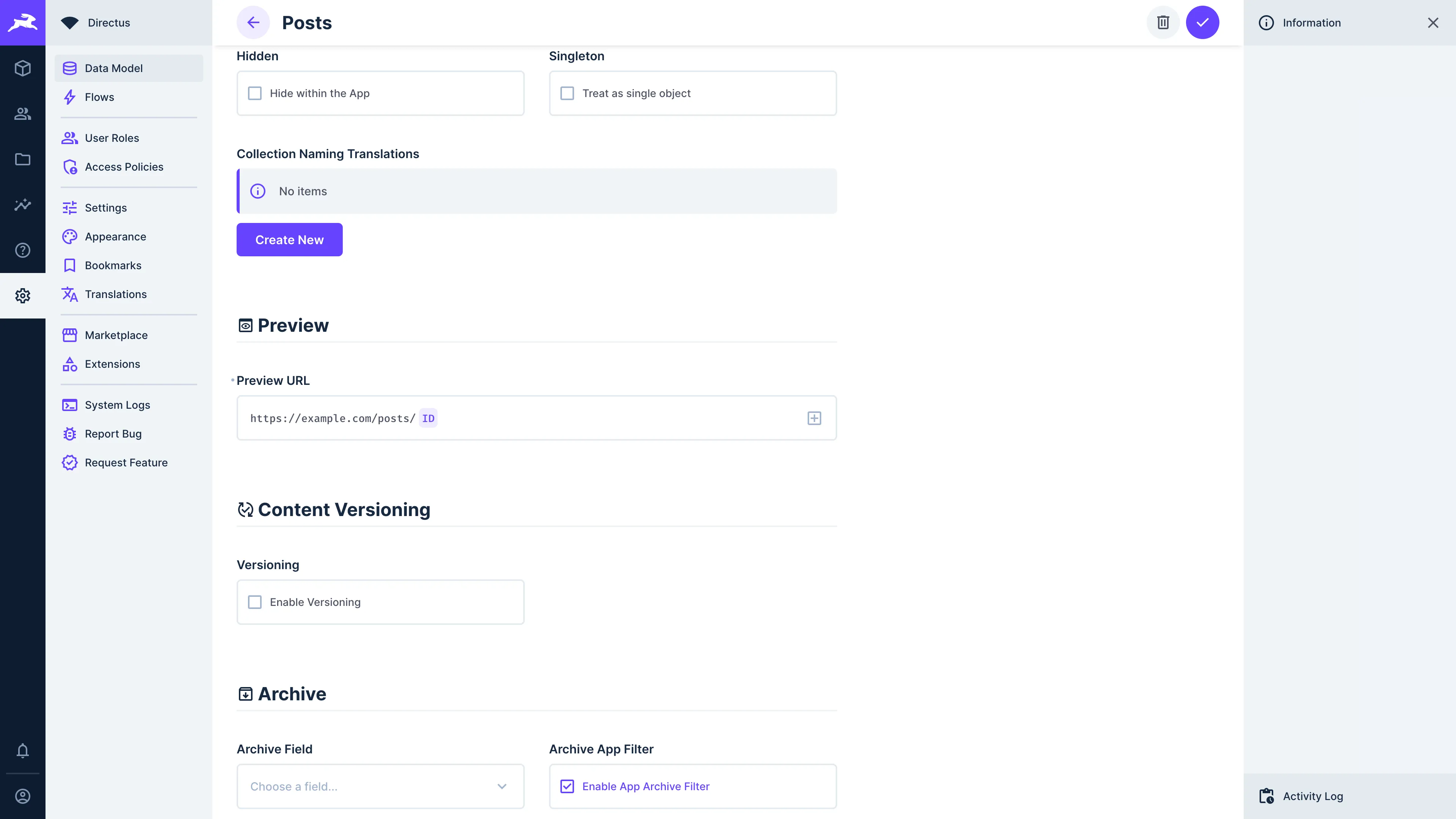
Navigate to Settings -> Data Model and select the collection you wish to configure. In the "Preview URL" section, specify the Preview URL for your project by selecting the field you wish to use to identify your object in your application from the dropdown and entering a URL in this format:
http://your-website-url/<field>
Using Live Preview with Your Application
Once configured, Directus will send a request to your application for a page with the specified URL format. For example, if you've configured the URL to be https://mysite.com/posts/{id}, and load the preview for the item with an id of 42, then your application will receive a request to https://mysite.com/posts/42. You may choose to add preview=true to indicate to your client that it needs to treat this as a live preview. You may also choose to add an access token with the ability to view items as an additional URL query parameter.
You can then develop your application to handle that request and return a page that shows a preview of the item requested.
version query parameter on the items endpoint (e.g. /items/posts/42?version=draft). Without this, the preview will display main content regardless of the selected version.{{$version}}, visual editing in the live preview pane also works with content versions. When viewing a version, only items on collections with versioning enabled will show editable elements.Previewing Item Contents in the Editor
In an item page, toggle "Enable Preview" at the top of the page. Whenever you create or edit an item in your collection and “click” save, you should see a live preview of the item on the right-hand side of the screen.
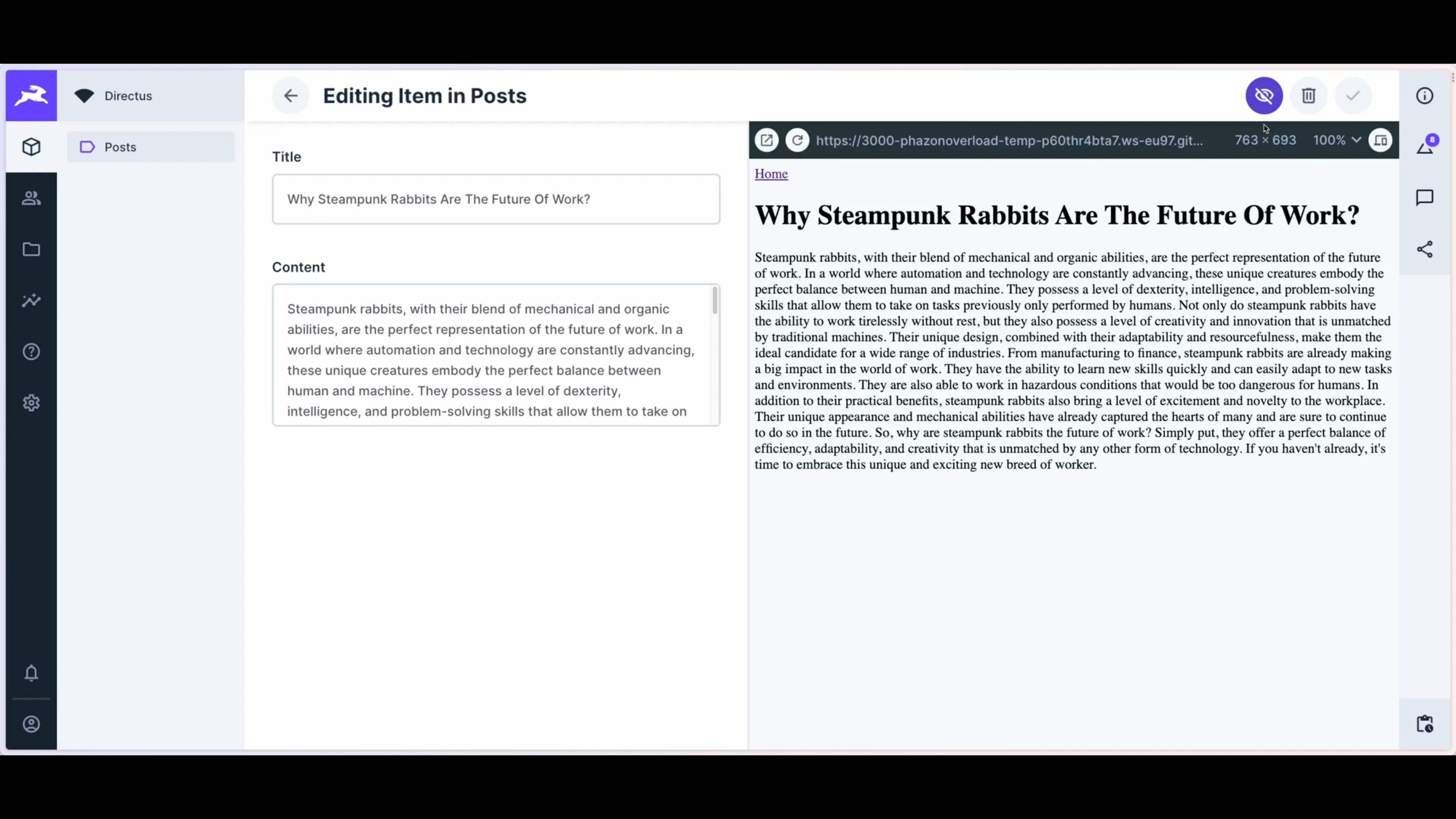
Clicking on also lets you preview your content on desktop and mobile screens, while allows you to pop the live preview out into a separate window.
Get once-a-month release notes & real‑world code tips...no fluff. 🐰